Plusnet troubleshooting
Plusnet troubleshooting Select an option

Fibre without phone line

Fibre without a phone line
If your Plusnet broadband is not working, or your Plusnet internet is down, try these simple checks, they'll fix most Plusnet issues in minutes.
Restart the router by switching it off, wait a minute, then power it back on. Give it five minutes to reconnect, then check again.
If things still aren’t working check what the lights on the front of the hub are doing. To find out what they mean and what to do next see our router set up guides.
- Using a paper clip or pen, press and hold the reset pinhole on the back of the hub near the power and USB ports.
- Keep the button pressed for 20 seconds until the light turns or flashes green.
- Release the button and wait five minutes for the hub to complete its startup sequence and reconnect.
Important by resetting our hub, the factory default settings will be restored. Any changes you’ve made will be lost, so you’ll need to set them up again.
Make sure you:
- plug the grey broadband cable into the grey socket on the hub and into the master phone socket
- when using an Ethernet cable, plug one of the yellow ends into your device and the other into a port on the back of the hub
- every connection is fully pushed in, you'll hear a click
What is a microfilter?
Microfilters stop your phone and broadband signals interfering with each other. Without them, you may experience connection issues, slow speed, or noise on your phone line.
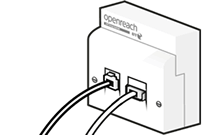
Double master socket
If you've got a double master socket, one with two cord sockets, you can connect your router directly, without using microfilters. Just plug the hub into the socket labelled ADSL.
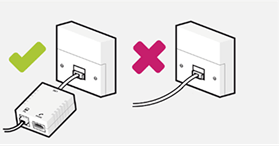
Single master socket
If you've got a single master socket, you'll need to use a microfilter. Plug the filter into the master socket, then connect the hub to the ADSL socket on the filter.
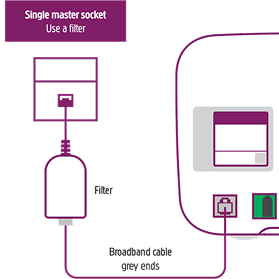
For the best setup, there are two things to think about, your broadband signal and your WiFi signal.
Broadband signal
Connect the hub to your master socket the small square white box where your broadband line enters your home. This gives you the best possible broadband performance.
WiFi signal
For the strongest WiFi, put the hub:
- somewhere central and out in the open, not on the floor
- close to the devices you use most
- away from thick walls, metal objects and electrical appliances
If you've tried all our tips and tests and think you may have a broadband fault, please report a problem

Broadband with phone line

Broadband with a phone line
If your Plusnet broadband isn't working or your internet is down, try these simple checks, they'll fix most Plusnet issues in minutes.
Restart the router by switching it off, wait a minute, then power it back on. Give it five minutes to reconnect, then check again.
If things still aren’t working check what the lights on the front of the hub are doing. To find out what they mean and what to do next see our router set up guides
- Using a paper clip or pen, press and hold the reset pinhole on the back of the hub near the power and USB ports.
- Keep the button pressed for 20 seconds until the light turns or flashes green.
- Release the button and wait five minutes for the hub to complete its startup sequence and reconnect.
Important by resetting our hub, the factory default settings will be restored. Any changes you’ve made will be lost, so you’ll need to set them up again.
If your phone line's very noisy, this can cause problems with your broadband connection, check our phone fault trouble shooting guide
If your line’s with another provider you’ll need to report the problem to them.
Make sure you:
- plug the grey broadband cable into the grey socket on the hub and into the master phone socket
- when using an Ethernet cable, plug one of the yellow ends into your device and the other into a port on the back of the hub
- every connection is fully pushed in, you'll hear a click
What is a microfilter?
Microfilters stop your phone and broadband signals interfering with each other. Without them, you may experience connection issues, slow speed, or noise on your phone line.
Double master socket
If you've got a double master socket, one with two cord sockets, you can connect your router directly, without using microfilters. Just plug the hub into the socket labelled ADSL.
Single master socket
If you've got a single master socket, you'll need to use a microfilter. Plug the filter into the master socket, then connect the hub to the ADSL socket on the filter.
For the best setup, there are two things to think about, your broadband signal and your WiFi signal.
Broadband signal
Connect the hub to your master socket the small square white box where your broadband line enters your home. This gives you the best possible broadband performance.
WiFi signal
For the strongest WiFi, put the hub:
- somewhere central and out in the open, not on the floor
- close to the devices you use most
- away from thick walls, metal objects and electrical appliances
If you've tried all our tips and tests and think you may have a broadband fault, please report a problem
Fibre without a phone line
If your Plusnet broadband is not working, or your Plusnet internet is down, try these simple checks, they'll fix most Plusnet issues in minutes.
Restart the router by switching it off, wait a minute, then power it back on. Give it five minutes to reconnect, then check again.
If things still aren’t working check what the lights on the front of the hub are doing. To find out what they mean and what to do next see our router set up guides.
- Using a paper clip or pen, press and hold the reset pinhole on the back of the hub near the power and USB ports.
- Keep the button pressed for 20 seconds until the light turns or flashes green.
- Release the button and wait five minutes for the hub to complete its startup sequence and reconnect.
Important by resetting our hub, the factory default settings will be restored. Any changes you’ve made will be lost, so you’ll need to set them up again.
Make sure you:
- plug the grey broadband cable into the grey socket on the hub and into the master phone socket
- when using an Ethernet cable, plug one of the yellow ends into your device and the other into a port on the back of the hub
- every connection is fully pushed in, you'll hear a click
What is a microfilter?
Microfilters stop your phone and broadband signals interfering with each other. Without them, you may experience connection issues, slow speed, or noise on your phone line.
Double master socket
If you've got a double master socket, one with two cord sockets, you can connect your router directly, without using microfilters. Just plug the hub into the socket labelled ADSL.
Single master socket
If you've got a single master socket, you'll need to use a microfilter. Plug the filter into the master socket, then connect the hub to the ADSL socket on the filter.
For the best setup, there are two things to think about, your broadband signal and your WiFi signal.
Broadband signal
Connect the hub to your master socket the small square white box where your broadband line enters your home. This gives you the best possible broadband performance.
WiFi signal
For the strongest WiFi, put the hub:
- somewhere central and out in the open, not on the floor
- close to the devices you use most
- away from thick walls, metal objects and electrical appliances
If you've tried all our tips and tests and think you may have a broadband fault, please report a problem
Broadband with a phone line
If your Plusnet broadband isn't working or your internet is down, try these simple checks, they'll fix most Plusnet issues in minutes.
Restart the router by switching it off, wait a minute, then power it back on. Give it five minutes to reconnect, then check again.
If things still aren’t working check what the lights on the front of the hub are doing. To find out what they mean and what to do next see our router set up guides
- Using a paper clip or pen, press and hold the reset pinhole on the back of the hub near the power and USB ports.
- Keep the button pressed for 20 seconds until the light turns or flashes green.
- Release the button and wait five minutes for the hub to complete its startup sequence and reconnect.
Important by resetting our hub, the factory default settings will be restored. Any changes you’ve made will be lost, so you’ll need to set them up again.
If your phone line's very noisy, this can cause problems with your broadband connection, check our phone fault trouble shooting guide
If your line’s with another provider you’ll need to report the problem to them.
Make sure you:
- plug the grey broadband cable into the grey socket on the hub and into the master phone socket
- when using an Ethernet cable, plug one of the yellow ends into your device and the other into a port on the back of the hub
- every connection is fully pushed in, you'll hear a click
What is a microfilter?
Microfilters stop your phone and broadband signals interfering with each other. Without them, you may experience connection issues, slow speed, or noise on your phone line.
Double master socket
If you've got a double master socket, one with two cord sockets, you can connect your router directly, without using microfilters. Just plug the hub into the socket labelled ADSL.
Single master socket
If you've got a single master socket, you'll need to use a microfilter. Plug the filter into the master socket, then connect the hub to the ADSL socket on the filter.
For the best setup, there are two things to think about, your broadband signal and your WiFi signal.
Broadband signal
Connect the hub to your master socket the small square white box where your broadband line enters your home. This gives you the best possible broadband performance.
WiFi signal
For the strongest WiFi, put the hub:
- somewhere central and out in the open, not on the floor
- close to the devices you use most
- away from thick walls, metal objects and electrical appliances
If you've tried all our tips and tests and think you may have a broadband fault, please report a problem
Plusnet broadband and EE mobile deals
Go faster by upgrading your Plusnet broadband and get a great SIM-only deal from EE.

More ways to get help

Plusnet community
Our customers always have tips to share.
Talk to our community

Sign Language service
Contact us using British Sign Language


My Account
Manage your bills, packages and details.
Sign into Broadband